.NET Framework에 포함된 리소스와 외부 리소스를 사용하는 사용자 지정 언어
소개
직장에서 우리는 많은 개발자가 처리해야 할 일반적인 문제에 직면했습니다. 이는 클라이언트에게 서비스를 제공하는 클라이언트의 언어 및 사용자 정의 언어입니다.
예를 들어, 기본 언어가 비공식 언어를 사용하고 클라이언트가 나이가 많은 사람들이기 때문에 클라이언트가 공식적인 언어를 원한다고 가정해 보겠습니다.
또한 이 솔루션은 여러 언어에 적용되며 영어와 스페인어를 사용합니다.
제 모국어는 영어가 아닙니다. 튜토리얼의 실수에 대해 사과드립니다. 실수를 발견하고 수정하고 싶다면 이 저장소에서 끌어오기 요청을 열면 기꺼이 승인해 드리겠습니다!
리소스
리소스는 키/값 구조를 갖는 확장자가 .resx인 XML 파일이며 다음과 같습니다.
<?xml version="1.0" encoding="utf-8"?>
<root>
  <xsd:schema id="root" xmlns="" xmlns:xsd="http://www.w3.org/2001/XMLSchema" xmlns:msdata="urn:schemas-microsoft-com:xml-msdata">
    <xsd:import namespace="http://www.w3.org/XML/1998/namespace" />
    <xsd:element name="root" msdata:IsDataSet="true">
      <xsd:complexType>
        <xsd:choice maxOccurs="unbounded">
          <xsd:element name="metadata">
            <xsd:complexType>
              <xsd:sequence>
                <xsd:element name="value" type="xsd:string" minOccurs="0" />
              </xsd:sequence>
              <xsd:attribute name="name" use="required" type="xsd:string" />
              <xsd:attribute name="type" type="xsd:string" />
              <xsd:attribute name="mimetype" type="xsd:string" />
              <xsd:attribute ref="xml:space" />
            </xsd:complexType>
          </xsd:element>
          <xsd:element name="assembly">
            <xsd:complexType>
              <xsd:attribute name="alias" type="xsd:string" />
              <xsd:attribute name="name" type="xsd:string" />
            </xsd:complexType>
          </xsd:element>
          <xsd:element name="data">
            <xsd:complexType>
              <xsd:sequence>
                <xsd:element name="value" type="xsd:string" minOccurs="0" msdata:Ordinal="1" />
                <xsd:element name="comment" type="xsd:string" minOccurs="0" msdata:Ordinal="2" />
              </xsd:sequence>
              <xsd:attribute name="name" type="xsd:string" use="required" msdata:Ordinal="1" />
              <xsd:attribute name="type" type="xsd:string" msdata:Ordinal="3" />
              <xsd:attribute name="mimetype" type="xsd:string" msdata:Ordinal="4" />
              <xsd:attribute ref="xml:space" />
            </xsd:complexType>
          </xsd:element>
          <xsd:element name="resheader">
            <xsd:complexType>
              <xsd:sequence>
                <xsd:element name="value" type="xsd:string" minOccurs="0" msdata:Ordinal="1" />
              </xsd:sequence>
              <xsd:attribute name="name" type="xsd:string" use="required" />
            </xsd:complexType>
          </xsd:element>
        </xsd:choice>
      </xsd:complexType>
    </xsd:element>
  </xsd:schema>
  <resheader name="resmimetype">
    <value>text/microsoft-resx</value>
  </resheader>
  <resheader name="version">
    <value>2.0</value>
  </resheader>
  <resheader name="reader">
    <value>System.Resources.ResXResourceReader, System.Windows.Forms, Version=4.0.0.0, Culture=neutral, PublicKeyToken=b77a5c561934e089</value>
  </resheader>
  <resheader name="writer">
    <value>System.Resources.ResXResourceWriter, System.Windows.Forms, Version=4.0.0.0, Culture=neutral, PublicKeyToken=b77a5c561934e089</value>
  </resheader>
  <data name="Action_cancel" xml:space="preserve">
    <value>Finish</value>
  </data>
  <data name="Action_greeting" xml:space="preserve">
    <value>Hello</value>
  </data>
</root>
영어 및 스페인어라는 두 가지 다른 언어에 대한 리소스를 생성할 예정이므로 파일 명명법은 resources.ISOLANGUAGECODE.resx입니다. 예를 들어 스페인어의 경우 resource.es.resx, 영어의 경우 resource.resx입니다. 나중에 독일어를 추가하려는 경우 파일 이름은 resource.de.resx가 됩니다.
임베디드 리소스
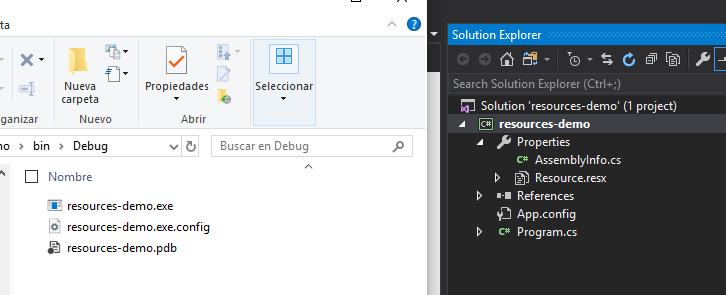
포함된 리소스는 프로젝트가 컴파일될 때 dll 내부에 추가됩니다.
보시다시피 리소스가 포함된 이미지는 다음과 같습니다. Resource.resx 파일은 편집에서 볼 수 없습니다.
외부 리소스
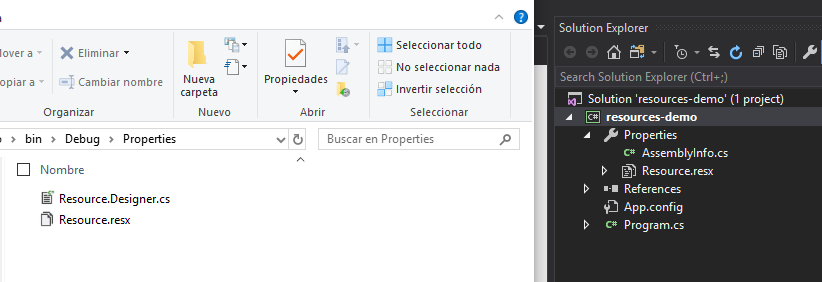
반면에 외부 리소스 또는 포함되지 않은 리소스는 컴파일 후 폴더에 추가되는 리소스입니다.
리소스 파일(.resx)은 Properties 폴더 안에 있습니다.
프로젝트 빌드
.NET Framework의 콘솔 프로젝트부터 시작해 보겠습니다.
내장 리소스 파일 생성
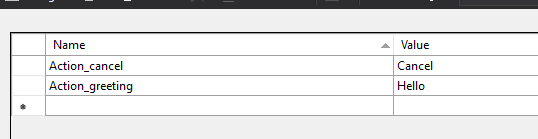
몇 개의 키가 있는 리소스 파일을 추가하고 나중에 외부 리소스로 업데이트하는 데 사용할 내장 리소스인지 확인하세요.
외부 리소스 파일 생성
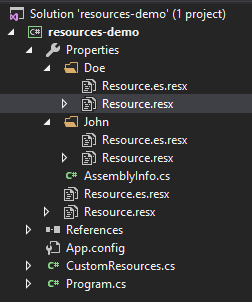
외부 리소스와 내장 리소스를 분리하기 위해 나중에 쉽게 액세스할 수 있도록 이름이 있는 폴더 내에 외부 리소스를 추가할 것입니다.
팁: 속성 폴더 안에 폴더를 추가하고, 외부에 만들고 내부로 이동하려면 Visual Studio에서는 폴더를 만들 수 없습니다.
포함된 리소스에 대해 동일한 작업을 수행한 다음 파일의 properties로 이동하여 Advanced, Build action 내부로 이동하여 Content로 변경하고 Copy to Output Dictionary를 Copy if newer로 변경합니다.
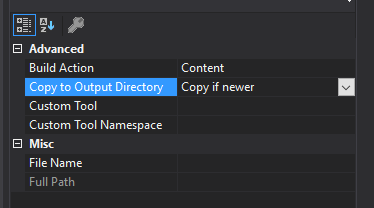
다음과 같이 표시됩니다.
app.config에 키 추가
우리는 멋진 개발자이고 모든 것을 잘 수행하고 각 클라이언트의 코드를 변경하지 않기를 원하기 때문에 appconfig에 리소스 파일을 찾을 폴더 이름을 갖는 키를 추가해 보겠습니다.
<?xml version="1.0" encoding="utf-8" ?>
<configuration>
    <startup>
        <supportedRuntime version="v4.0" sku=".NETFramework,Version=v4.7.2" />
    </startup>
  <appSettings>
    <add key="CustomResources.Folder" value="John" />
  </appSettings>
</configuration>
```따라서 나중에 리소스를 찾을 때 `Properties.Doe` 대신 `Properties.John`를 찾습니다.

또한 app.config를 쉽게 변경할 수 있으므로 애플리케이션이 이미 배포된 경우에도 쉽게 변경할 수 있습니다.

## 포함된 리소스 파일에 액세스

.NET Framework를 사용하는 것은 매우 쉽기 때문에 임베디드 속성에 액세스하려면 `Properties` 개체를 사용해야 합니다. 이 개체는 리소스 파일을 속성으로 가지며 해당 개체 내부에는 `resx` 파일에 있는 모든 키/값이 있습니다.

```csharp
static void Main(string[] args)
{
    var hello = Properties.Resource.Action_greeting;
    var bye = Properties.Resource.Action_cancel;

    Console.WriteLine($"Action_greeting value: {hello}, Action_cancel value: {bye}");

    Console.Read();
}
실행하면 다음과 같은 내용이 표시됩니다.
Action_greeting value: Hello, Action_cancel value: Cancel
외부 리소스 파일에 접근하기
이 부분은 거의 동일합니다. Properties 객체로 리소스 파일에 액세스할 수 있습니다.
var hello = Properties.Resource.Action_greeting;
var bye = Properties.Resource.Action_cancel;

var johnhello = Properties.John.Resource.Action_greeting;
var johnbye = Properties.John.Resource.Action_cancel;

var doehello = Properties.Doe.Resource.Action_greeting;
var doebye = Properties.Doe.Resource.Action_cancel;
문제
이 방법을 사용하는 주요 문제점은 모든 키가 객체 내부의 속성이므로 이전에 본 것처럼 호출해야 한다는 것입니다. John 리소스 파일의 Action_greeting 키를 호출하려면 다음 Properties.John를 사용한 다음 Resource.Action_greeting를 사용해야 합니다.
바로 문제가 있습니다.
왜냐하면 많은 클라이언트를 위한 애플리케이션을 개발하는 경우 각 클라이언트에 대한 리소스 파일을 호출하는 방법을 변경하는 것은 좋지 않은 생각이기 때문입니다.
상상할 수 있습니까? 각 클라이언트에 대한 애플리케이션을 컴파일하고 John를 Doe로 변경한 다음 다른 것으로 변경합니다. 미친 짓이군요!
솔루션
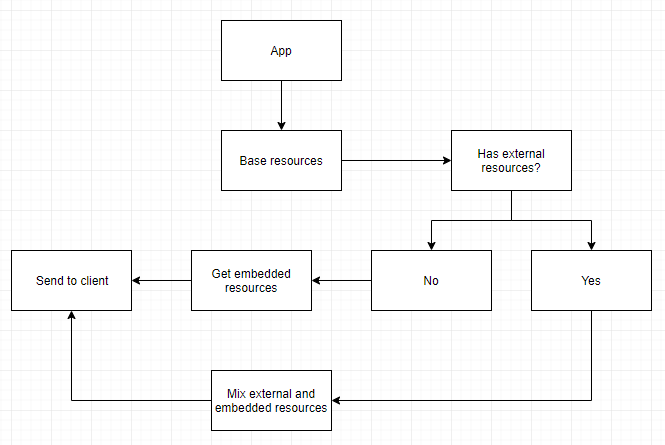
우리 팀 리더는 폴백 시스템과 같은 매우 좋은 방법을 생각했습니다. 리소스의 기본 모델이 있어야 하고, 각 클라이언트에 대해 해당 리소스로 파일을 업데이트할 리소스 파일이 있어야 하며, 결국 단일 리소스 목록이 생성됩니다.
클라이언트가 사용자 정의 리소스를 원하지 않으면 우리는 기본 리소스를 사용하고, 클라이언트가 원한다면 우리는 그들의 리소스를 사용합니다.
이것을 체크리스트에 넣으려면 다음을 수행해야 합니다.
- 모든 키/값을 포함된 리소스에 대한 사전에 매핑하는 방법을 찾으세요.
- 모든 키/값을 외부 리소스에 대한 사전에 매핑하는 방법을 찾습니다.
- 두 파일을 혼합하고 각 언어에 대한 단일 사전을 갖습니다.
- 사전에 액세스하고 값을 반환하는 메서드를 만듭니다.
다이어그램
코딩해보자
우선, 리소스 파일을 가져오는 것부터 이를 혼합하고 값을 반환하는 것까지 모든 로직을 포함하는 분리된 클래스를 만들어 보겠습니다. 해당 클래스는 CustomResources라고 합니다.
이것은 다음과 같습니다:
    class CustomResources
    {

        private static Dictionary<string, string> _ResourcesEnglish;
        private static Dictionary<string, string> ResourcesEnglish;

        private static Dictionary<string, string> _ResourcesSpanish;
        private static Dictionary<string, string> ResourcesSpanish;


        private static Dictionary<string, string> OverwriteDictionary(Dictionary<string, string> currentDictionary, Dictionary<string, string> newDictionary, bool addIfDoesntExist = false)
        {
            ...
        }

        private static Dictionary<string, string> GetDictionaryFromEmbedded(string embedded, string cultureInfoCode)
        {
            ...
        }

        private static Dictionary<string, string> GetDictionaryFromFile(string file)
        {
            ...
        }

        public static string GetText(string key)
        {
            ...
        }

        public static string GetText(string key, string language)
        {
            ...
        }
    }
저희는 속성에 대한 지연 로딩을 구현하고 있습니다. 이는 성능을 높이는 데 도움이 되며 사전을 한 번 로드하게 합니다.
GetDictionaryFromEmbedded: 포함된 리소스에서 사전을 반환합니다.GetDictionaryFromFile: 외부 리소스에서 사전u를 반환합니다.OverwriteDictionary: 두 개의 사전을 혼합하여 단일 사전을 반환합니다.GetText: 키에 주어진 값을 반환합니다.
삽입된 리소스에서 사전으로
xml 파일에서 모든 속성을 가져와서 사전을 반환해야 합니다.
private static Dictionary<string, string> GetDictionaryFromEmbedded(string embedded, string cultureInfoCode)
{
    Dictionary<string, string> res = new Dictionary<string, string>();

    try
    {
        ResourceManager rm = new ResourceManager(embedded, Assembly.GetExecutingAssembly());
        var resourceSet = rm.GetResourceSet(new CultureInfo(cultureInfoCode), true, true);

        var resourceDictionary = resourceSet.Cast<DictionaryEntry>()
                            .ToDictionary(r => r.Key.ToString(),
                                          r => r.Value.ToString());
        res = resourceDictionary;
    }
    catch (Exception e)
    {
        string a = e.Message;
        // Error getting resource file
    }

    return res;
}
두 가지:- embedded라는 매개변수가 필요합니다. parementers는 디자이너에서 볼 수 있는 파일의 이름이며, 우리의 경우에는 resources-demo.Properties.Resource입니다.
- 또한 선택할 언어에 대한 코드인cultreInfoCode라는 매개변수가 있습니다. 운 좋게도 .NET Framework가 작업을 수행하므로 아무 것도 할 필요가 없습니다. 영어나 스페인어 중 하나를 선택하기만 하면
resource.es.resx또는resource.resx중에서 선택됩니다.
외부 리소스에서 사전으로
파일에서 얻는 것이 약간 해킹적이지만 어렵지는 않습니다. 실행 파일의 현재 위치를 가져와서 리소스 파일의 위치를 연결한 다음 이를 사전으로 구문 분석해야 합니다.
하지만 ResXResourceReader에 액세스하려면 먼저 System.Windows.Forms에 대한 참조를 추가해야 합니다.
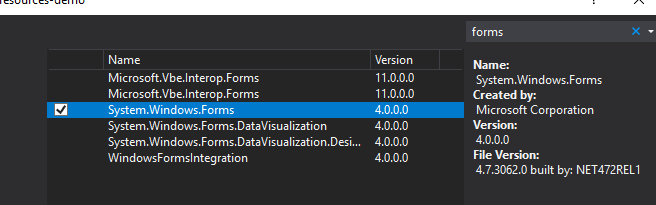
이제 GetDictionaryFromFile 메서드로 이동합니다.
private static Dictionary<string, string> GetDictionaryFromFile(string file)
{
    Dictionary<string, string> res = new Dictionary<string, string>();
    string currentPath = (System.IO.Path.GetDirectoryName(System.Reflection.Assembly.GetExecutingAssembly().GetName().CodeBase) + file).Replace("file:\\", "");

    try
    {
        using (ResXResourceReader resxReader = new ResXResourceReader(currentPath))
        {
            foreach (DictionaryEntry entry in resxReader)
            {
                res.Add((string)entry.Key, (string)entry.Value);
            }
        }
    }
    catch (Exception e)
    {
        string a = e.Message;
    }

    return res;
}
파일 매개변수는 실행 파일에서 리소스 파일까지의 위치로 채워져야 합니다. 이 경우에는 "\\Properties\\John\\Resource.resx"입니다.
사전 혼합
거의 끝났습니다. 먼저 app.settings에 액세스할 수 있도록 참조에 System.Configuration를 추가하는 것을 기억하세요.
 private static Dictionary<string, string> OverwriteDictionary(Dictionary<string, string> currentDictionary, Dictionary<string, string> newDictionary, bool addIfDoesntExist = false)
{
    var identifier = ConfigurationManager.AppSettings["CustomResources.Folder"];
    if (String.IsNullOrEmpty(identifier))
        return currentDictionary;

    foreach (var item in newDictionary)
    {
        try
        {
            currentDictionary[item.Key] = item.Value;
        }
        catch (Exception)
        {
            if(addIfDoesntExist)
            currentDictionary.Add(item.Key, item.Value);
        }
    }

    return currentDictionary;
}
사전에서 텍스트 가져오기
언어를 선택하는 비공개 메서드를 호출하는 공개 메서드를 만듭니다.
private static string GetText(string key, string language)
{
    try
    {
        switch (language)
        {
            case "es":
                return ResourceSpanish[key];
            case "en":
            default:
                return ResourceEnglish[key];
        }
    }
    catch (Exception)
    {
        return $"No value with key: {key} and language: {language}";
    }
}
public static string GetText(string key)
{
    try
    {
        return GetText(key, Thread.CurrentThread.CurrentCulture.TwoLetterISOLanguageName);
        }
    catch (Exception)
    {
        return $"No value with key: {key}";
    }
}
언어를 더 추가하려면 스위치를 수정해야 합니다.
속성 getter에 코드 추가
지금은 모든 메서드가 있으므로 공용 속성의 getter를 수정하여 값을 가져올 수 있습니다.
private static Dictionary<string, string> _ResourcesEnglish;
private static Dictionary<string, string> ResourcesEnglish
{
    get
    {
        if (_ResourcesEnglish == null)
        {
            var folderIndentifier = ConfigurationManager.AppSettings["CustomResources.Folder"]; ;
            var baseResources = GetDictionaryFromEmbedded("resources-demo.Properties.Resource");
            var customResources = GetDictionaryFromFile($"\\Properties\\{folderIndentifier}\\Resource.resx", "en");
            _ResourcesEnglish = OverwriteDictionary(baseResources, customResources);
        }

        return _ResourcesEnglish;
    }
}

private static Dictionary<string, string> _ResourcesSpanish;
private static Dictionary<string, string> ResourcesSpanish
{
    get
    {
        if (_ResourcesSpanish == null)
        {
            var folderIndentifier = ConfigurationManager.AppSettings["CustomResources.Folder"]; ;
            var baseResources = GetDictionaryFromEmbedded("resources-demo.Properties.Resources");
            var customResources = GetDictionaryFromFile($"\\Properties\\{folderIndentifier}\\Resources.es.resx", "es");
            _ResourcesSpanish = OverwriteDictionary(baseResources, customResources);
        }

        return _ResourcesSpanish;
    }
}
- 먼저 app.settings에서 식별자를 가져옵니다.
- 그런 다음 기본 리소스, 즉 내장된 리소스를 얻습니다.
- 그런 다음 사용자 정의 리소스를 얻으려면 폴더 이름(식별자)이 필요합니다.
- 그런 다음 이를 혼합하고 값을 반환합니다.
이 모든 작업은 한 번만 수행되므로 지연 로딩이 발생합니다.
테스트
코드와 관련된 모든 것이 끝났으므로 이제 테스트해 보겠습니다. 사전에서 값을 얻으려면 값을 반환하는 CustomResources.GetText(string key) 메서드를 호출해야 합니다.
전체 리소스 파일 업데이트
이 테스트는 리소스 파일의 전체 키/값을 업데이트하려는 경우입니다. 그림에서 볼 수 있듯이 키는 동일하지만 값이 다릅니다.
John를 테스트하고 이를 설정하기 위해 app.config를 <add key="CustomResources.Folder" value="John" />로 설정합니다.
이제 기본 리소스 파일(Properties/Resource.es.resx)을 확인해 보겠습니다.
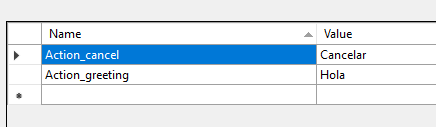
그런 다음 외부 리소스 파일(Properties/John/Resource.es.resx):
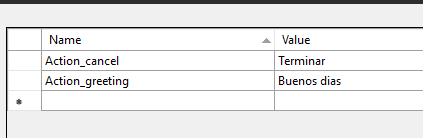
좋습니다. 모든 것이 설정되었으면 콘솔 애플리케이션을 실행하고 속성의 get 부분으로 이동하여 모든 것을 확인하겠습니다.
folderIdentifier에는 앱 설정 값이 있습니다.

baseResources에는 기본 리소스, 내장된 리소스의 값이 있습니다.

customResources에는 John 폴더 내부에 외부 리소스 값이 있습니다.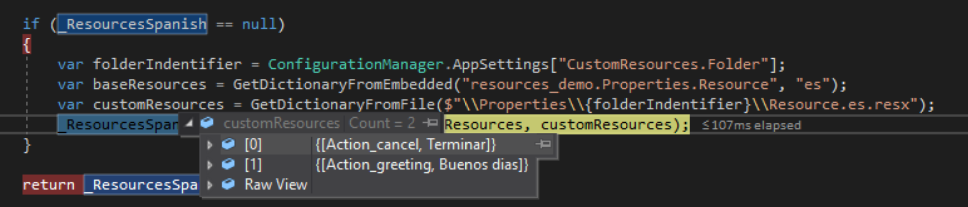
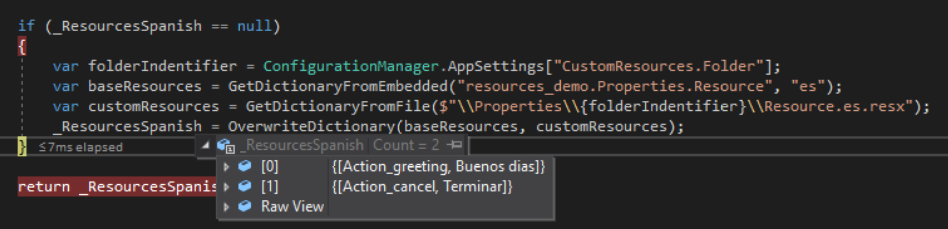
그리고 마지막으로 _ResourcesSpanish는 기본 자원과 외부 자원이 혼합된 값을 갖는다.
하나만 업데이트
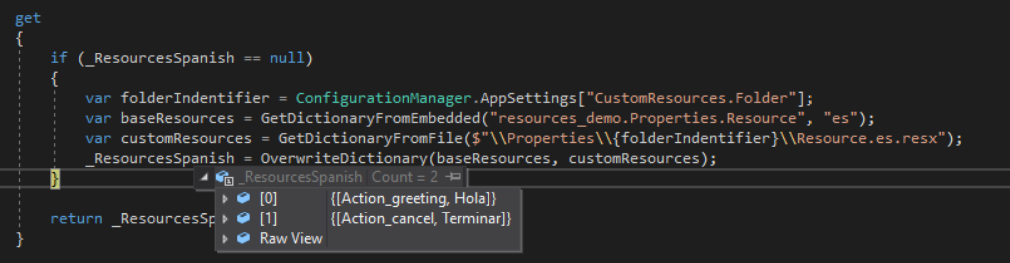
이제 동일하지만 다른 시나리오를 테스트해 보겠습니다. 키 하나를 업데이트하고 다른 키도 동일하게 두십시오.

보시다시피 파일은 Action_greeting에 대해 동일한 값 의미를 가지지만 Action_cancel에 대해 다른 값을 가지므로 Action_cancel만 업데이트해야 합니다.
리소스 파일이 누락되었습니다.
외부 리소스 파일을 제공하지 않으면 파일이 있을 것으로 예상하므로 실패하면 빈 사전을 반환하고 두 사전을 혼합하면 기본 사전으로 끝나기 때문에 전혀 문제가 되지 않습니다.
포함된 리소스에 쌍이 없습니다.
외부 리소스 파일에 쌍이 있는 경우 기본적으로 최종 사전에 추가되지 않습니다. 두 사전을 혼합할 때 OverwriteDictionary() 메서드를 호출하고 addIfDoesntExist 매개변수를 true로 설정하여 이를 변경할 수 있습니다.
다른 언어
보시다시피 우리는 언어를 지정하지 않았습니다. 모든 작업은 GetText(string key, string language)를 호출하는 GetText(string key) 함수에 의해 수행되고 매개변수 language는 스레드의 현재 언어를 반환하는 TwoLetterISOLanguageName에 의해 채워지기 때문입니다.
내 경우에는 기본 언어가 스페인어이므로 항상 스페인어로 표시되지만 영어도 사용해 볼 수 있습니다.
약간의 코딩을 하고 스페인어와 영어를 모두 확인할 수 있는 것을 만들어 보겠습니다.
static void Main(string[] args)
{

    // System.Threading.Thread.CurrentThread.CurrentUICulture = new CultureInfo("en-US");
    System.Threading.Thread.CurrentThread.CurrentCulture = new CultureInfo("en-US");
    WriteText("Action_greeting");
    WriteText("Action_cancel");

    // System.Threading.Thread.CurrentThread.CurrentUICulture = new CultureInfo("es-ES");
    System.Threading.Thread.CurrentThread.CurrentCulture = new CultureInfo("es-ES");
    WriteText("Action_greeting");
    WriteText("Action_cancel");

    Console.Read();
}

private static void WriteText(string key) {
    Console.WriteLine($"[Culture: {System.Threading.Thread.CurrentThread.CurrentCulture}] Key: {key} -> value: {CustomResources.GetText(key)}");
}
이를 실행하면 출력은 다음과 같아야 합니다.
[Culture: en-US] Key: Action_greeting -> value: Hello
[Culture: en-US] Key: Action_cancel -> value: Finish
[Culture: es-ES] Key: Action_greeting -> value: Hola
[Culture: es-ES] Key: Action_cancel -> value: Terminar

처음 두 값은 영어인 resources.resx에서 가져오고 마지막 값은 모두 스페인어로 되어 있으며 값은 resources.es.resx에서 검색됩니다.
그게 다야
이 튜토리얼에서 우리는 언어용 내장 리소스와 외부 리소스를 혼합하는 방법을 찾았습니다. 이는 팀에서 겪었던 문제에 대한 솔루션이었으며 그 이후로 아무런 문제 없이 실행되어 왔습니다.
소스코드는 여기에서 확인할 수 있습니다.
질문이 있으시면 언제든지 @emimontesdeocaa로 트윗해 주세요. 시간이 나면 연락드리겠습니다.